Screen Capture to Text on Mac: 3 Practical Ways
Learn three practical ways to turn a screen capture into text on Mac, including Live Text, online OCR, and a private shortcut-based OCR app.
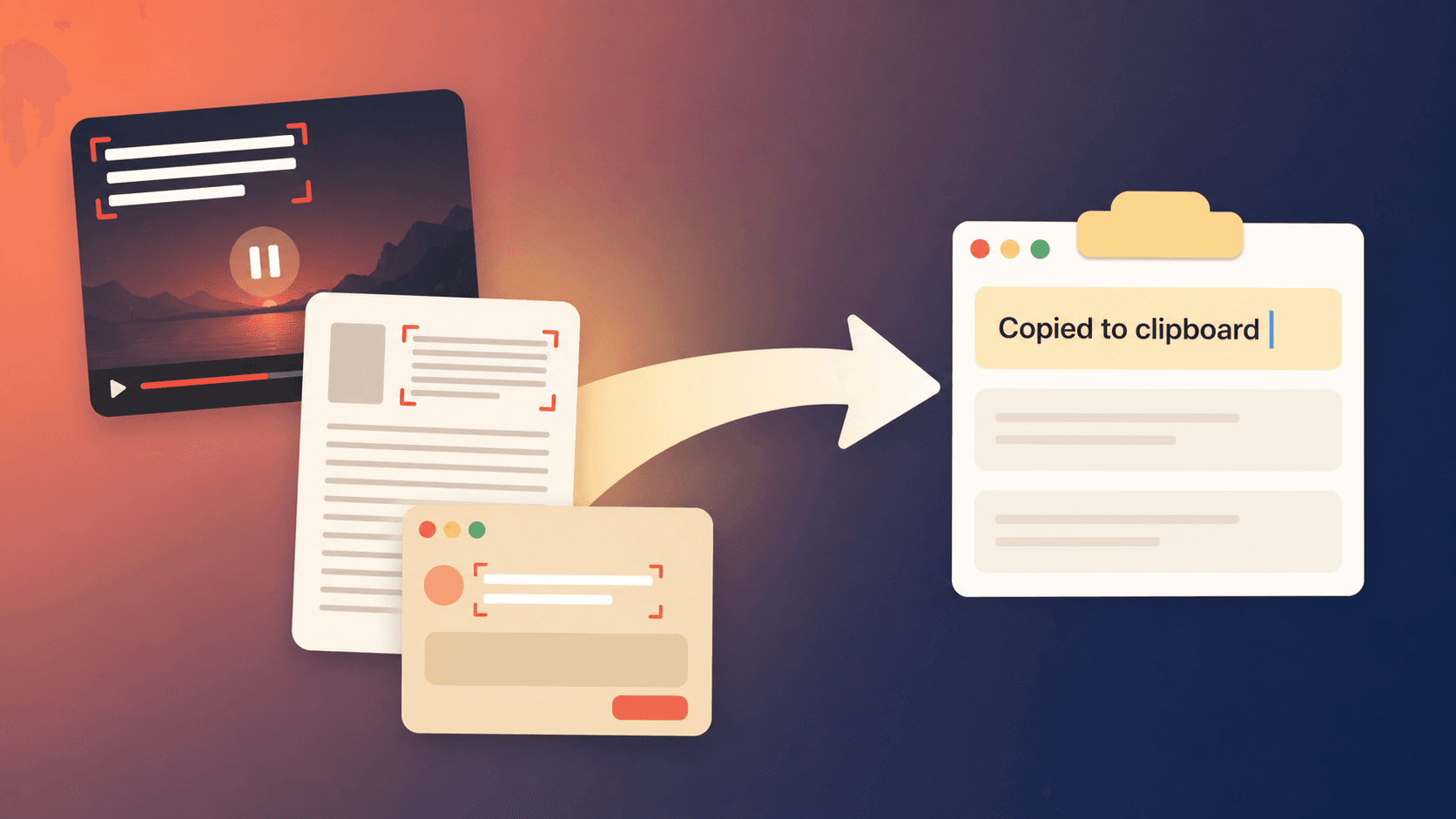
If you need to turn a screen capture to text on a Mac, you have three sensible options: use Apple Live Text, upload an image to an online OCR service, or use a screen OCR app that copies the selected region straight to your clipboard.
The right choice depends on where the text is, how often you do this, and whether the image can leave your computer. I use all three approaches. The dedicated app wins for me when the words are already visible and I just want to copy them without changing what I am doing.
The quick answer
For a one-off image, first try the tools already on your Mac. Open the image in Preview or Photos, move the pointer over the words, drag to select them, and press Command-C. In Safari, you can often select words directly inside an image too.
If macOS does not expose the text, an online OCR service can process a saved screenshot. The usual flow is screenshot, save, upload, wait, copy, and delete. That is reasonable for an occasional document, but it is a lot of steps for one sentence.
For repeated captures, a dedicated app shortens the job to shortcut, drag, and paste. Text Capture is the app I built for that last workflow. It recognises the pixels inside the area you select and puts the result on your clipboard.
| Method | Best for | Typical workflow | Main trade-off |
|---|---|---|---|
| Apple Live Text | Images already open in a supported Apple app | Point, select, copy | Not every app or screen surface exposes selectable text |
| Online OCR | Occasional whole images or files | Save, upload, process, copy | The image leaves your Mac and the workflow has more steps |
| Screen OCR app | Frequent small captures across apps | Shortcut, drag, paste | Requires installing a dedicated utility |
Why normal copy and paste fails
What looks like text is not always stored as text. It may be a collection of pixels in a screenshot, a subtitle inside a video frame, a scanned page in a PDF, or a label drawn by an app that does not expose it for selection. Your eyes can read it, but Command-C has nothing to copy.
OCR, short for optical character recognition, bridges that gap. It analyses the shapes in an image and returns characters you can edit, search, or paste. Screen OCR applies the same idea to whatever is visible on your display.
This distinction matters because it tells you when OCR is unnecessary. If you can already select the words normally, do that. It will preserve the source text exactly and is usually faster. Reach for OCR only when the source blocks ordinary selection or exists only as an image.
1. Use Apple Live Text
Live Text is the best first attempt because it is already part of macOS. Apple documents text selection in Photos and Safari, and similar behaviour appears in Preview and Quick Look when macOS recognises the image content.
Try this:
- Open the image in Photos or Preview, or find it in Safari.
- Move the pointer over the words until it changes to a text cursor.
- Drag across the text you want.
- Press Command-C, then paste it into your destination.
Live Text is particularly good when you want to interact with a photo: copy an address, open a detected web link, look up a word, or translate a short passage. There is no extra app to buy and the interaction feels native when it appears.
The limitation is consistency. The words may be visible inside an app or video player where you cannot select them. Sometimes you need to create a screenshot, open that screenshot somewhere else, and then try selection. At that point the built-in option is still free, but it is no longer the shortest path.
Apple's current instructions for Mac are available in its Live Text guide for Photos and Live Text guide for Safari.
2. Use an online OCR tool
Online OCR is useful when you already have a file and want the service to process more than a tiny screen region. It can be a reasonable choice for an old scanned page, a photographed receipt, or a screenshot someone sent to you.
The common process is:
- Take or locate the screenshot.
- Open the OCR website.
- Upload the image.
- Choose the language if the service asks.
- Copy or download the recognised result.
Before uploading, check the service's privacy policy, retention rules, file limits, supported languages, and whether the free tier adds a queue or page limit. Avoid uploading confidential customer information, passwords, private messages, financial records, or internal work unless you have confirmed that the service and your organisation allow it.
Online tools also add context switching. Saving a screenshot and moving it through a website is fine once. It becomes tedious when you need three words from a paused video, then an error message from an app, then a number from a PDF.
3. Use a dedicated screen OCR app
A dedicated screen OCR app is designed around the moment when you can see the text but cannot select it. It stays available from the menu bar, starts with a global shortcut, and returns the result to the clipboard.
With Text Capture, the basic workflow is:
- Press Shift-Command-2, or set your own shortcut.
- Drag around the visible words you need.
- Paste the recognised text into Notes, Messages, a document, or another Mac app.
The recognition runs locally on the Mac. Text Capture also keeps a capture history, which is one of the details I use most. If I copy something else before pasting, the earlier OCR result has not disappeared. Additive clipboard can combine several captures, and settings let you change shortcuts, line-break handling, notifications, the menu bar icon, and the sound played after a capture. It can also read QR codes and barcodes and speak recognised text aloud.
Text Capture costs $3.99 for one device or $4.99 for three devices, with lifetime updates and a seven-day money-back guarantee. It supports macOS 14 or newer on Apple Silicon and Intel Macs. If you want to compare it with other apps before buying, read the screen OCR for Mac comparison.
Which method should you choose?
Choose Live Text if the image is already in a supported Apple app and the pointer lets you select the words. It costs nothing extra and is ideal for occasional use.
Choose online OCR if you have a non-sensitive image or document, want whole-file processing, and do not mind uploading it. This is also useful when a cloud service supports a language or document feature your local tool does not.
Choose a dedicated screen OCR app if this interruption happens throughout your day. The value is not that OCR is new. It is that the action works the same way across a video, image, PDF, browser, or stubborn desktop interface.
The choice is not permanent. I still use Live Text when it is right there. Text Capture is for the gaps where the normal Mac interaction stops.
Real examples from my own Mac
I reach for screen capture OCR whenever a small piece of useful text is stuck on the screen:
- An error message in an app that does not allow selection.
- A name or URL shown for a moment in a product video.
- A paragraph in a screenshot inside a chat.
- A reference number on a scanned PDF page.
- A subtitle from a paused tutorial.
- A setting label that I want to search for later.
Capture history makes these small actions more forgiving. I can go back to a recent result instead of recreating the same screen state. The feedback sound is deliberately pleasant too. It gives a small confirmation that the text is ready, and it can be changed or disabled in settings if sound is not your thing.
These details sound minor compared with an OCR accuracy benchmark, but they decide whether I keep using a utility. A tool that interrupts the work or makes me wonder whether the capture finished does not stay in my muscle memory.
Where screen capture OCR struggles
OCR is an estimate, not access to the original characters. Results get worse when the text is tiny, blurred, low contrast, heavily stylised, curved, or partly hidden. Increase the source size or zoom in before capturing when you can.
Text Capture is not the right tool for bulk processing hundreds of images or converting a long scanned book. Use batch or document OCR software for that. It can also misread hard-to-read handwriting and computer code. Code contains punctuation where one wrong symbol changes the meaning, so check every character rather than pasting OCR output into a terminal or production file.
Layout is another limitation. A quick screen OCR app aims to return useful text, not recreate complex columns, tables, fonts, and page geometry. If you need a faithful editable document, choose a tool built for document conversion.