Screen OCR for Mac: 6 Options Compared
Compare six screen OCR options for Mac, including Live Text, TextSniper, Raycast, open-source tools, and Text Capture.
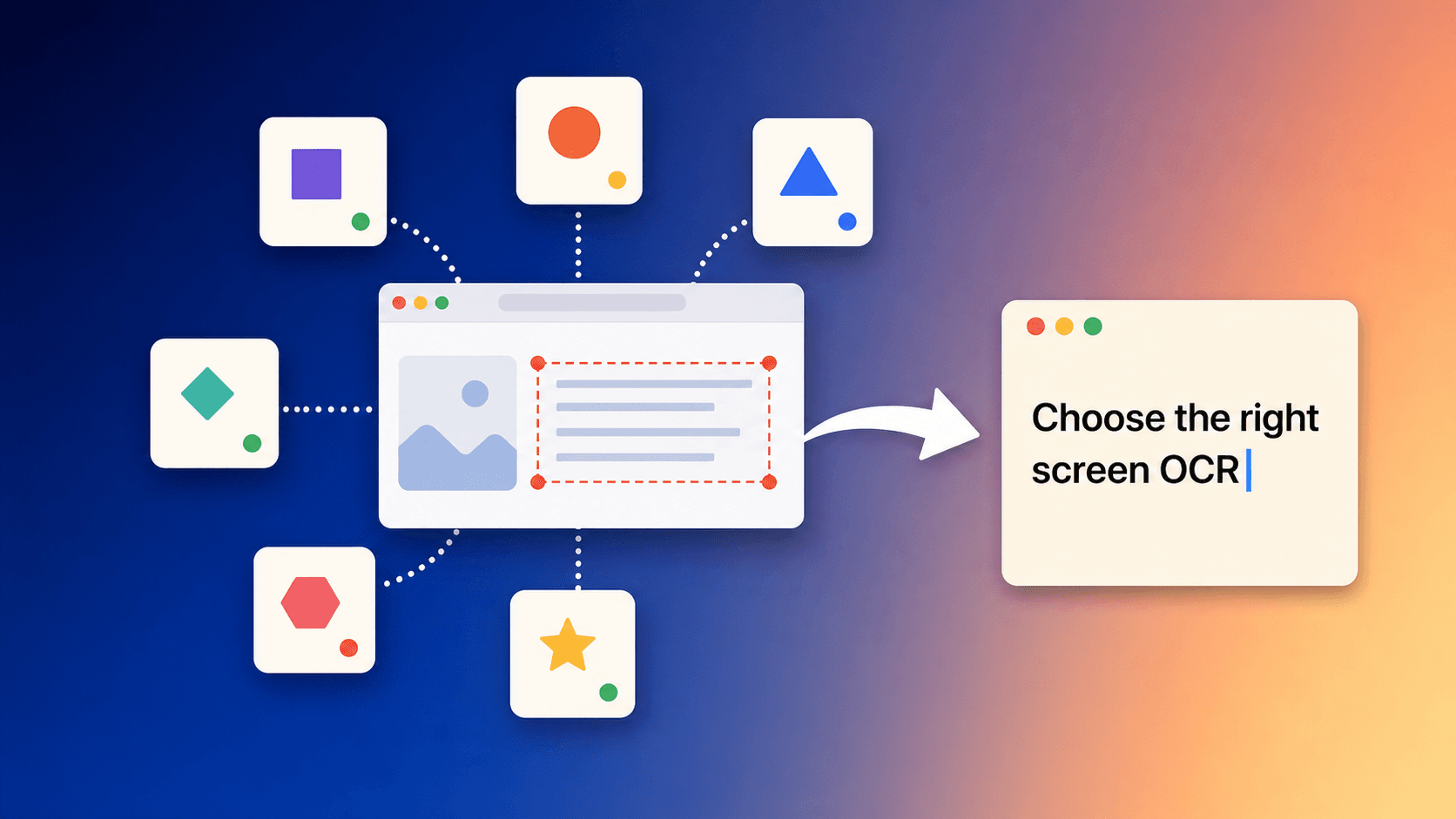
The most useful screen OCR for Mac is the one that matches your actual interruption. Apple Live Text may already solve it. A menu bar utility may be faster across different apps. A Raycast extension is appealing if Raycast is already central to your workflow. An open-source command can be ideal if you would rather script the behaviour yourself.
I compared six options: Apple Live Text, Text Capture, TextSniper, Easy Screen OCR, Raycast ScreenOCR, and macOCR. I built Text Capture, so this is not a claim that my app is objectively best. The comparison uses each product's official documentation and pricing as checked on 28 July 2026, plus my own experience building and using a Mac OCR utility.
The short version
- Start with Apple Live Text if your image is already open in Photos, Preview, Quick Look, or Safari.
- Choose Text Capture if you want a polished shortcut, local recognition, capture history, configurable feedback, and a low one-time price.
- Consider TextSniper if you want an established dedicated app that works on older macOS versions.
- Consider Easy Screen OCR if its cloud OCR, translation, and larger language list fit your work better than local processing.
- Use Raycast ScreenOCR if you already live in Raycast and prefer adding one focused command to it.
- Try macOCR if you are comfortable installing a command-line tool and connecting it to Shortcuts, Alfred, Hammerspoon, or Raycast.
There is no need to pay for another app if Live Text already covers the places you copy from. A dedicated utility earns its place when the same problem keeps appearing across apps.
| Option | Best for | Processing | Price at check | Main limitation |
|---|---|---|---|---|
| Apple Live Text | Occasional text in Apple-supported image surfaces | On the Mac | Included with macOS | Availability depends on the app and content |
| Text Capture | Fast capture across apps with history | On the Mac | $3.99 for 1 device | macOS 14 or newer; not for bulk OCR |
| TextSniper | A mature dedicated OCR shortcut on older Macs | On the Mac | $7.99 for 1 Mac | Major upgrades may cost extra |
| Easy Screen OCR | Cloud OCR and a broad documented language range | Online OCR | $19 lifetime with your own Google API | Images are processed online |
| Raycast ScreenOCR | Existing Raycast users | On the Mac | Free Raycast extension | Requires Raycast and an extra command workflow |
| macOCR | Technical users who want a scriptable tool | On the Mac | Free and open source | Command-line setup and no polished app UI |
How I compared these tools
Screen OCR apps advertise similar outcomes, so I compared the parts that affect daily use:
- Coverage: Can it capture text wherever it is visible, or only inside particular apps?
- Steps: How much happens between seeing the words and having editable text?
- Data handling: Does recognition happen on the Mac or require an online service?
- Recall and control: Can you recover a result and customise the behaviour?
- Compatibility and cost: Which Macs run it, and how is it sold?
I have not run a controlled accuracy benchmark across every language and macOS version. Facts about other products come from their official pages, linked below.
1. Apple Live Text
Best for: Someone who occasionally copies words from an image already open in a supported Mac app.
Live Text is the first choice because it is included with macOS. In Photos and Safari, you can select recognised words much like ordinary text. There is nothing extra to install, and it can identify useful items such as links and addresses.
Its weakness is coverage. In an app, paused video, game, or unusual interface, you may need to take a screenshot and open it elsewhere first. Choose Live Text when the source already cooperates. A dedicated utility adds no value there.
2. Text Capture
Best for: Mac users who repeatedly copy short pieces of unselectable text and want a consistent shortcut plus capture history.
Text Capture is the app I built after getting tired of text being visible but unavailable. Press Shift-Command-2 by default, drag around the words, and paste. Recognition happens locally, so captured content is not sent to an OCR server.
Capture history lets you return to earlier results, while additive clipboard combines several selections. You can customise shortcuts, line breaks, the menu bar icon, notifications, and feedback sounds. It also reads QR codes and barcodes and can speak recognised text aloud. I particularly like the sound because it confirms a capture without making me look away, but it can be changed or disabled.
Text Capture supports 18 recognition languages, macOS 14 or newer, and both Apple Silicon and Intel Macs. A one-device license is $3.99 and a three-device license is $4.99. Both are one-time purchases with lifetime updates and a seven-day money-back guarantee.
It is not designed for bulk processing or layout reconstruction. Hard-to-read handwriting can fail, and code needs checking because one mistaken symbol matters.
Choose it when local processing, history, custom feedback, and the same interaction across apps matter to you.
3. TextSniper
Best for: Someone who wants an established dedicated OCR menu bar app, especially on a Mac that cannot run macOS 14.
TextSniper also uses shortcut, select, and paste. Its site lists QR and barcode reading, text to speech, a custom shortcut, and support from macOS Catalina onward. Language availability varies with macOS.
Current prices are $7.99 for one Mac, $9.99 for three, and $11.99 for an unlimited Mac App Store license. They are one-time purchases, but the site says major upgrades may cost extra. Text Capture also includes QR and barcode reading, text to speech, and a custom shortcut; it costs less and adds capture history, while TextSniper supports older Macs. TextSniper also warns that symbol-heavy text such as code can be misread.
4. Easy Screen OCR
Best for: Someone who wants online OCR, translation, and a documented list of more than 100 recognition languages.
Easy Screen OCR has a menu bar and shortcut flow, but its documented processing is online. Its Mac page says Google OCR supports more than 100 languages, with PNG/PDF saving and custom shortcuts.
The company says captures are uploaded for processing and cleared after OCR, so this is not on-device recognition. Pricing lists $19 lifetime with your own Google API, $29 for six months, or $49 yearly. Some official pages have older update dates, so confirm compatibility and checkout terms first. Choose it when cloud OCR, translation, or broader stated language coverage outweighs local-only processing.
5. Raycast ScreenOCR
Best for: Someone who already uses Raycast as the keyboard entry point for Mac utilities.
ScreenOCR is a community Raycast extension that says it processes captures locally using Apple's VisionKit API. It needs Screen Recording permission. Raycast is free for personal use and includes public Store extensions, so there is no extra charge if Raycast is already installed.
You still depend on Raycast and the extension's maintainer. Some people prefer that consolidated workflow; others want a dedicated shortcut, settings, and history. Choose it when Raycast is already muscle memory.
6. macOCR
Best for: Developers and technical Mac users who prefer a free, open-source command they can wire into their own automation.
The open-source schappim/macOCR command shows a capture cursor, prints recognised text, and copies it to the clipboard. Its README covers Homebrew, Intel and Apple Silicon binaries, language selection, fixed regions, and image-file input. You can launch it from Shortcuts, Alfred, Hammerspoon, or Raycast.
It is free under the MIT license and supports macOS Catalina or newer. The trade-off is command-line setup with no built-in history or polished settings. Choose it when inspectable source and scripting matter more than a finished app interface.
Screen OCR comparison table
| Option | Shortcut workflow | History | Data path | Compatibility | Price |
|---|---|---|---|---|---|
| Apple Live Text | Selection inside supported surfaces | No OCR-specific history | Built into macOS | Varies by Mac and macOS feature support | Included |
| Text Capture | Dedicated global capture shortcut | Built-in capture history | Local on-device OCR | macOS 14+, Intel and Apple Silicon | $3.99 / $4.99 one-time |
| TextSniper | Dedicated global capture shortcut | Not listed as a capture-history feature | Local Mac app workflow | macOS Catalina+, including M1 | $7.99 / $9.99 one-time |
| Easy Screen OCR | Custom shortcut, then OCR result window | Not highlighted as a core feature | Online processing, including Google OCR modes | Confirm with vendor before purchase | $19 lifetime with own API; subscriptions available |
| Raycast ScreenOCR | Raycast extension command | Can pair with Raycast clipboard features | Local via Apple VisionKit | macOS with Raycast | Free personal Raycast plan |
| macOCR | Command or user-created shortcut | Build your own | Local command-line app | macOS Catalina+ | Free, MIT licensed |
What I would choose
For an occasional photo, I would use Live Text. For frequent capture, I use Text Capture because it has local OCR, custom shortcuts and sound, and recoverable history. I think of it as essential on my own Mac, but not for someone who rarely meets unselectable text.
On an older Mac, compare TextSniper and macOCR. In a Raycast-heavy setup, try ScreenOCR first. For broad language needs where cloud processing is acceptable, investigate Easy Screen OCR and test its current build.
If you want the method rather than the product comparison, the screen capture to text guide walks through Live Text, online OCR, and shortcut-based capture step by step.
Sources and checking date
Product features and prices were checked on 28 July 2026 using these official pages:
- Apple Photos: use Live Text on Mac
- Apple Safari: interact with text in a picture
- Text Capture product and pricing
- TextSniper product, pricing, and FAQ
- Easy Screen OCR for Mac
- Easy Screen OCR Mac pricing
- Easy Screen OCR privacy policy
- Raycast ScreenOCR Store listing
- Raycast pricing
- schappim/macOCR source and documentation
Prices and compatibility can change. Follow the linked vendor page before installing or purchasing.